

Using SNOMED CT Concept Descriptions
Overview
Descriptions in SNOMED CT are human readable terms that are either fully-specified names or synonyms for SNOMED concepts. In some query strategies that use SNOMED CT relationships to extensionally select subsets of concepts of interest, it is helpful to be able to look up the fully-specified names (FSN) for these concepts. However the NLP API concept table does not contain the full set of FSNs available in SNOMED CT, only those present in the source reports that had been processed by the NLP API.
emtelligent provides an add-on table, sct_description table. This table contains the fully-specified names for all currently active concepts from the indicated release.
If you have added the sct_relationship table as explained in here, you may also want to add the sct_description table. This section explains how to use the sct_description in conjunction with the sct_relationship table to enable hierarchical concept searches.
The following shows rows from the sct_description table.
Adding SNOMED descriptions to Output Database
This section explains how to add the sct_description table to the Output Database.
MySQL
For MySQL server, run the following command:
PostgreSQL
To add the SNOMED description table:
- Download the zip file
sct_description_{country}_{version}_psql.zip. You can download this file from the downloads page. - Then, run the following command
Snowflake
For Snowflake, loading the relationship definitions into a table in the Output Database is a two-step process consisting of:
- Uploading the provided csv file to an internal stage.
- Executing the provided sql file that creates and populates the sct_description table.
-
Download the zip file
sct_description_{country}_{version}_snowflake.zip. -
Extract the downloaded zip file.
-
Extract the downloaded zip file. You will find 2 files:
- a
.csvfile containing the data in csv-delimited format - a
.sqlfile
- a
-
In the directory containing the extracted files, start a SnowSQL client session.
There are several ways to do this. If using a config file to store connection details, please refer to the SnowSQL documentation.
To start a SnowSQL session, you can also directly invoke the
snowsqlcommand-line client as follows, subsituting the placeholder arguments with the correct values for your instance:
-
Upload the file to Snowflake. Note the following:
- Please do not alter the name of
.csvfile as it is referenced by the companion.sqlfile. - Please upload the file to the root of the current user’s personal stage in Snowflake. The
COPY TOstatement in the.sqlfile expects to find the csv file there. If you upload the csv to a location other than the current user’s personal stage (signified by @~), you must modify the.sqlfile with the preferred location.
To upload the csv file to the root of the current user’s personal stage:
- Please do not alter the name of
-
Execute the
.sqlfile to create and populate thesct_descriptiontable in a Output Database.- Connect to an existing Output Database in Snowflake. Note: If one does not exist, you will have to create a new database in Snowflake and initialize it using the Output Database Client create-db command. For more information about this command, see Preparing the database for storing NLP API output in the Output Database Client documentation.
- In snowsql, at the command prompt execute the provided .sql file. For example:
This script contains SQL commands that creates a table called sct_descriptiion with the required column definitions, and copies rows from the csv file into it.
Microsoft SQL Server
For Microsoft SQL Server, loading the relationship data into the Output Database is a two-step process: creating the table and then importing the data from tab-delimited text file. You will need to do the following:
-
Download the zip file
sct_description\_{country}\_{version}\_ms_sql.zip. -
Extract the downloaded zip file. You will find 2 files:
- a
.tsvfile containing the data in tab-delimited format - a
.sqlfile that contains the table definition for the relationship table
- a
-
Execute the
.sqlfile to add thesct_descriptiontable to an existing the Output Database. For example, you can do this usingsqlcmdfrom the command prompt or by opening the file in the SQL Server Management Studio. This will add a table calledsct_descriptionto your database with the required column definitions. -
Use the SQL Server Management Studio, to import data from the .tsv file as follows:
-
In the Object Explorer, right-click on the destination database. In the right-click menu, click
Task>Import Data. -
In the Choose a Data Source dialog, select
Flat File Source.- Browse and find the
.tsvfile. - Change the Header row delimiter character to
{LF}. - Click on Advanced (in the left-hand panel) to reveal the advanced data type settings for flat-file imports. The defaults must be changed as follows:
- For Column 0 (containing
conceptIdvalues), set DataType toeight-byte signed integer - For Column 1 ( containing
termvalues), set OutputColumnWidth to256
- For Column 0 (containing
- Browse and find the
-
In the Choose a Destination dialog, set the Destination to
SQL Server Native Client 11.0 -
Click to Next to advance through the dialogs presented, and finally click the Finish button to begin the import.
-
Using sct_description table
The following ER diagram illustrates the relationship between the sct_relationship table and the sct_description table.
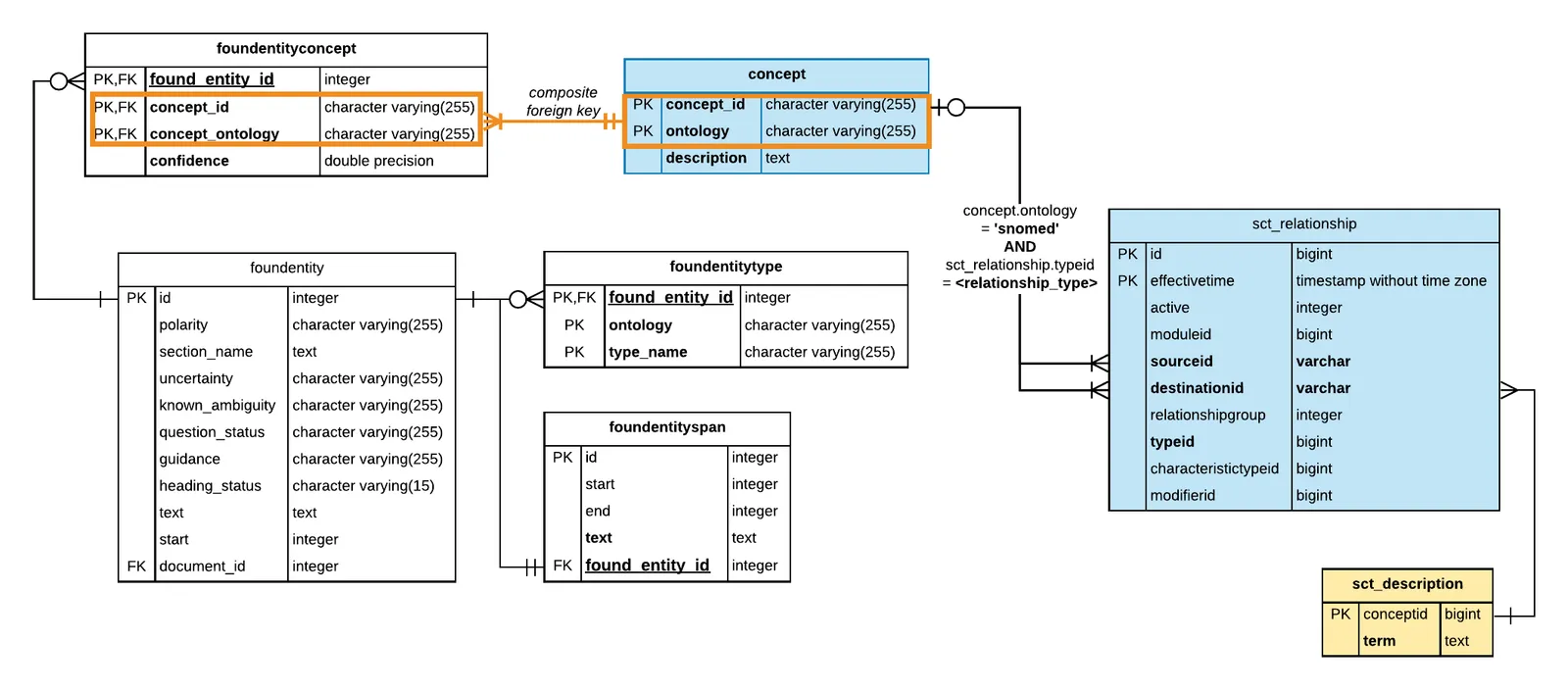
In the ER diagram, notice that:
- In the sct_description table, conceptid column stores the Snomed concept ID as number, and the term column contains the fully-specified name for the concept.
- The conceptid column is a primary key field, but does not have foreign key constraints. However, it can be used as the join constraint for joining the sct_relationship and sct_description tables.
Because the sct_description table contains all Snomed concept descriptions, it is used when a concept description cannot be found in the concept table. This is the case when there are no occurrences of the concept in your report (and therefore the concept was not extracted by the NLP API and added to the concept table). However, in some data analysis tasks, it is convenient to be able to access all concept descriptions in Snomed regardless. For example, when:
- You have generated a list of target concepts to search for by using the
Is a (attribute)| 116680003relationship to find all children concepts, and you want to review their fully-specified names. - Using other Snomed attribute relationships e.g.
Procedure site - Direct (attribute) | 405813007to retrieve more information about the concept. These types of searches typically return target concepts not present in your reports.
The following section provides sample queries for these uses.
It is essential to understand how to use the hierarchical concept search query pattern before attempting the following queries (see Using SNOMED CT Concept Hierarchies)
Query: Find concept descriptions for children of Myocardial Infarction
The following query searches performs a hierarchical concept search for Myocardial Infarct (disorder) | 22298006 and all its children concepts. This query approach explained in here.
After retrieving the set of children concept IDs, we look up the concept description using the sct_description table by joining on the conceptid column as shown.
PostgreSQL
Query: Find procedure sites
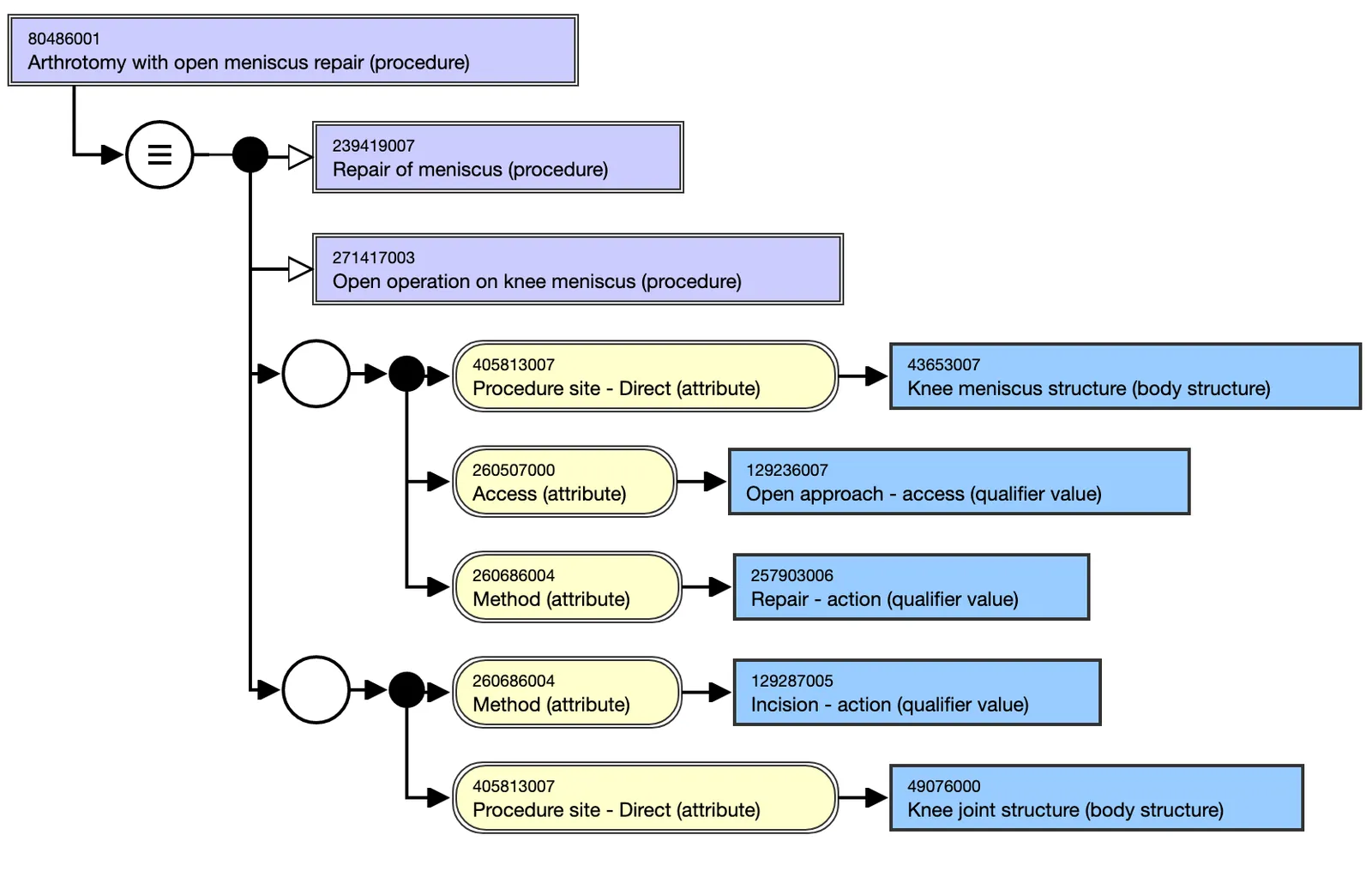
Some Snomed CT concepts are post-coordinated concepts such as Arthrotomy with open meniscus repair (procedure) | 80486001 where the location of a procedure and the procedure are represented by a single concept ID. Snomed CT represents defining characteristics using as attribute relationships. In this example, SNOMED CT distinguishes Arthrotomy with open meniscus repair from other types of arthrotomies by using the procedure site relationship attribute to associate arthrotomy (surgical incisions into joints) with knee joint structure and knee meniscus structure. SNOMED CT defines a large number of relationship attributes, each of which is relevant for a subset of concepts within the ontology (i.e. each type of attribute relationship is applicable for a specific domain or range of concepts). An explanation of the logical model and the list of relationship attributes and their ranges is found in the SNOMED CT Starter Guide.
You can use this feature of the SNOMED ontology to retrieve the body structures associated with procedures. The query below shows how to do this using the Output Database. The approach is as follows:
- First, find all procedure concepts by performing a hierarchical search for
Procedure (procedure) | 71388002. - Perform a left join with the sct_relationship table to find all relationships for procedure concepts that are of type
Procedure site - Direct (attribute) | 405813007. - For the
Procedure site - Direct (attribute) | 405813007relationship instances found, get the body site concept IDs from the destinationid column from the corresponding row (of the sct_relationship table). - Finally, look up the destinationid in the sct_description table to retrieve the fully-specified name of the body sites.
This query only returns procedures where the procedure is positively asserted and the procedure site ID defined (i.e. is not NULL).
PostgreSQL
It should be noted that it is possible for a concept to have multiple instances of relationships of the same type. The following diagram below shows the Snomed CT diagrammatic notation for Arthrotomy with open meniscus repair (procedure). Notice that this concept has multiple attribute groups each with a procedure site attribute (Knee meniscus structure (body structure) and Knee joint structure (body structure) respectively). For simplicity we return the first procedure site (with no particular guarantee as to which procedure site concept is returned). This is done using the first_value window function, and SELECT DISTINCT ON keyword.
References
- Using SNOMED CT Concept Hierarchies
- SNOMED CT Starter Guide
- SNOMED CT Logical Model. This page explains what Descriptions and Relationships are in the SNOMED CT nomenclature.
- SNOMED CT Concept Model. This page lists all relationship types and concept subsets that they are associated with.
- Snomed CT Diagramming Guideline.